
Website Visitors shows visits associated with a company after you install the tracking script. It does not identify every person who visits, and a matched company is not proof of buying intent.
Before you begin
You need access to Website Visitors and permission to change the site. Confirm the domain, the pages where the script will run, the workspace that should receive events, and any legal or consent requirements that apply.
Install and verify
- Open Website Visitors → Setup.
- Copy the site-specific script or pixel shown by Dureach.
- Install it using the platform guide for your site, such as WordPress, Webflow, Wix, or a hosted HTML page.
- Publish the site and visit a test page.
- Return to the setup screen and confirm the installation status changes to the verified state shown by the app.
- If available, use the test or diagnostic action before waiting for production traffic.
Make sure the script belongs to the right workspace. A successful installation confirms that events are being received; matching visits to a company may take longer and may use a separate allowance.
Review a visitor signal
- Open Website Visitors or CRM → Website Visitors.
- Filter by date, domain, page, visit count, or signal status when available.
- Open the resolved company and check the website, country, timestamp, pages, and source.
- Reject false matches and keep the information date in a note.
- Find a relevant contact only after the company information is confirmed.
Route the signal
Assign the company to an owner, add it to a named list, create a CRM task, or add it to a campaign using the available action. Check the contact and sending requirements before outreach. A visit alone should not trigger an automatic message unless your workspace has a reviewed automation for it.
Troubleshooting
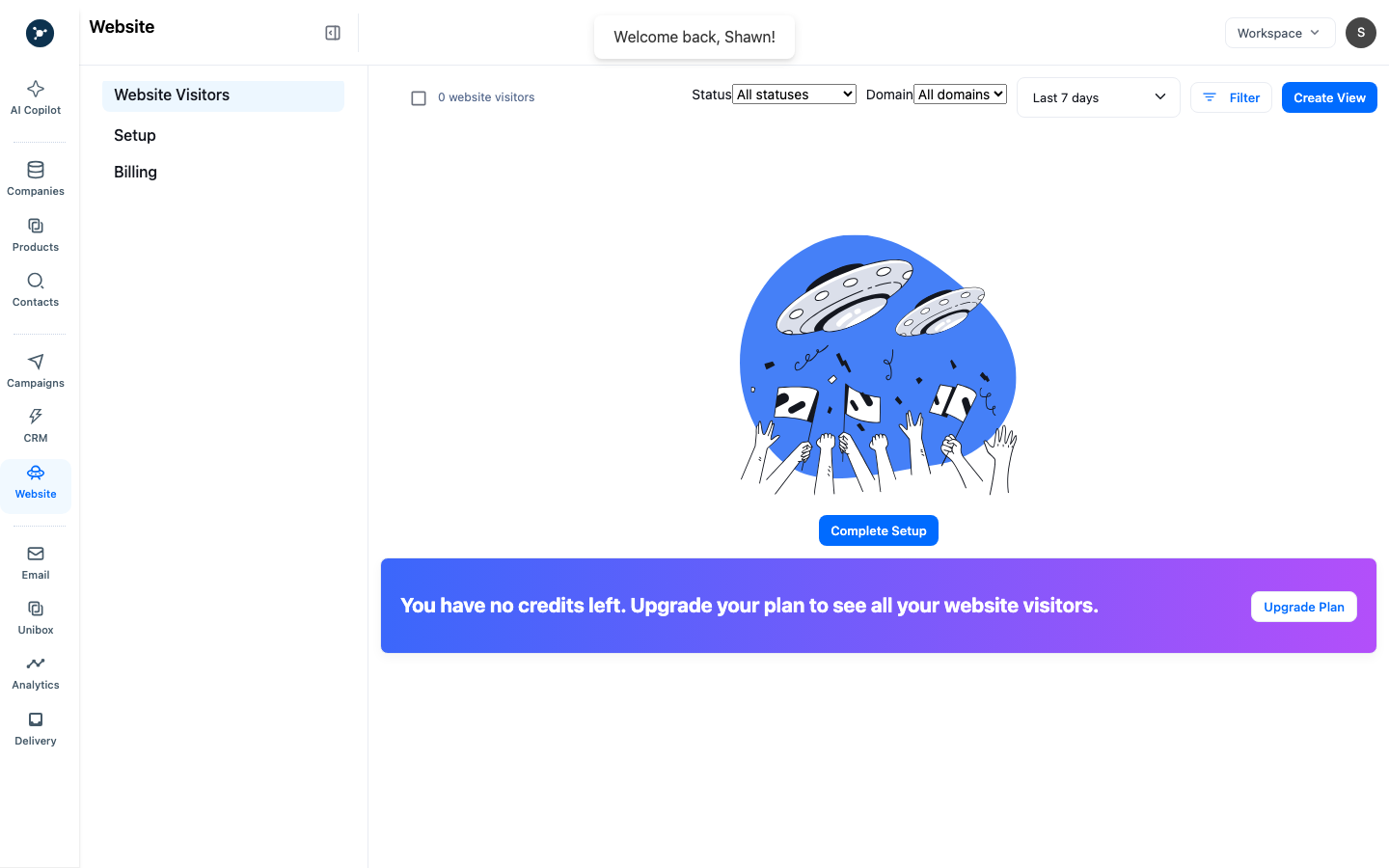
If the app shows a data-fetch error instead of an empty visitor list, keep the visible error details and request ID for support. Do not interpret a fetch failure as proof that there were no visitors.
- No visitors: confirm the script is published on the tested page, the domain matches setup, and the browser is not blocking it.
- Unresolved company: wait for processing, check the domain, and understand that individual visitors may remain anonymous.
- Wrong workspace: verify the site installation and integration workspace before collecting more events.
- No campaign action: check plan access, visitor-resolution allowance, contact availability, and sender readiness.
What happens next
Move a qualified signal into company research, enrichment, CRM ownership, or a reviewed campaign. For implementation variants, keep this setup page open while you install the script on WordPress, Webflow, Wix, or a hosted HTML page, then return here to verify the event.
Visitor state reference
| State | Meaning | Action |
|---|---|---|
| Loading | Visitor data or credits are being fetched. | Wait for the request to finish. |
| Anonymous | No company match is available for the visit. | Review installation and wait for another event; do not treat it as a person. |
| Resolving | Dureach is processing the visit. | Wait for the status to change before routing it. |
| Identified | Dureach matched the visit to a company. | Review pages, recency, and company information before routing. |
| Resolution failed | The visit could not be matched. | Check the domain and installation, then use the visible retry action if available. |
| Suppressed | The visit is excluded by workspace suppression rules. | Review the rule or leave it out of outreach. |
Route and verify
- Open Website and select a resolved company.
- Check the domain, visited pages, first/last visit, and visible engagement context.
- Assign an owner or save the company to a list using the action shown on the record.
- Find a contact, enrich only after identity review, and create a CRM task or campaign audience.
- Reopen the company from CRM and verify that the owner, source, and next action are retained.
The screenshot audit includes an error state where credits and visitors cannot be fetched. If that state appears, check workspace usage and integration configuration, use Try again, and escalate with the redacted error message if two attempts fail.