
Use Trade Data when shipment or customs records help you decide whether a company is worth researching. Search by product or HS code, then compare the company name, website, location, and record context before researching contacts or planning outreach.
Coverage for a specific market or query varies by source and available records.
Before you begin
Confirm that Trade Data is enabled and that your role can view it. Prepare a product description, HS code, importer or exporter name, country, port, or date range. Coverage varies by source, so treat a match as information to check rather than proof of buying intent.
Search
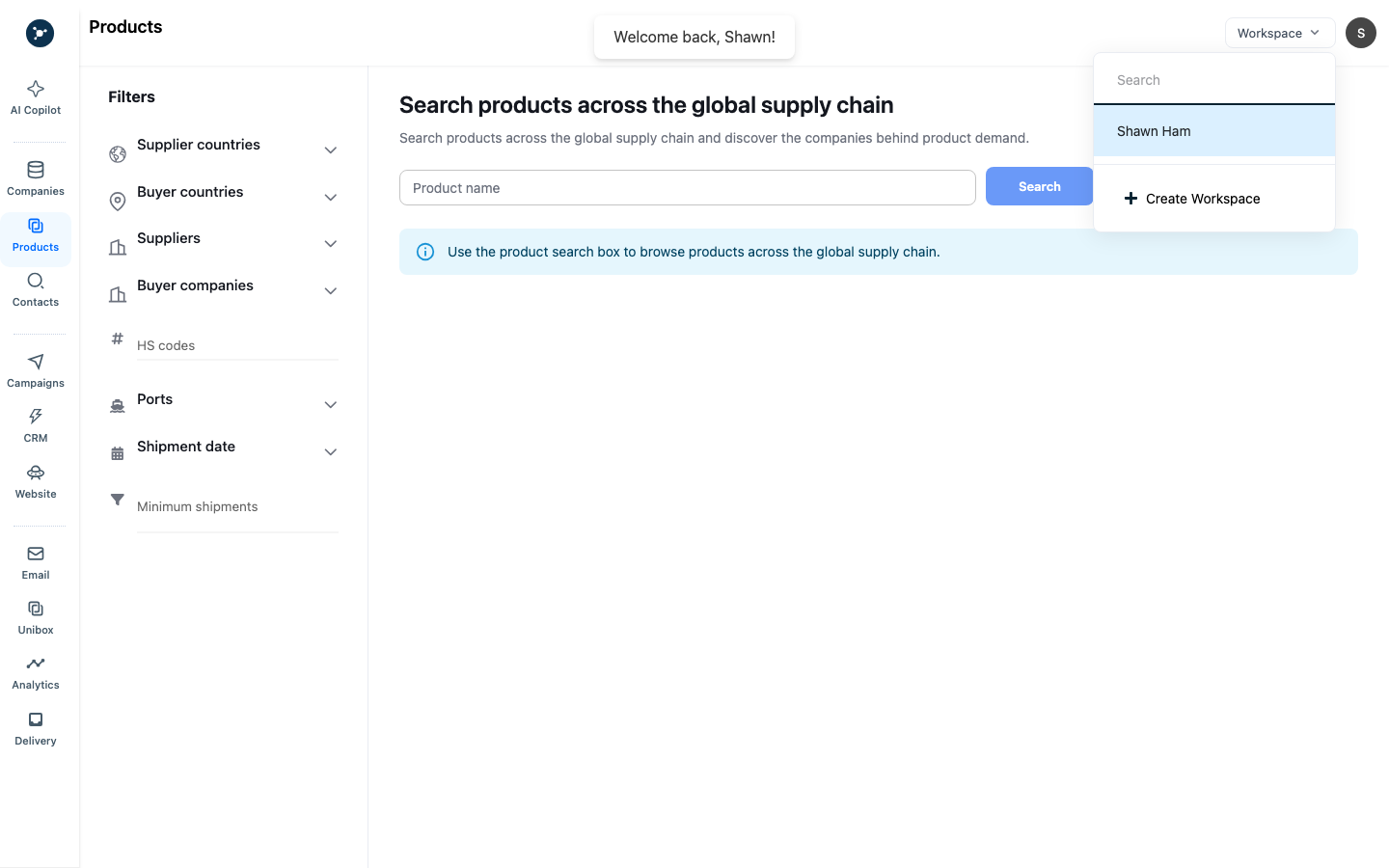
- Open Products from the left navigation. This is the trade-data search area.
- Select the product search field and use Search after entering a query.
- Enter the narrowest useful product, HS code, importer, exporter, or geography term.
- Apply date, country, port, importer, exporter, or shipment filters that are available in the result view.
- Review the result count and table before adding more filters.
- Open a result to inspect the product description, parties, date, origin, destination, ports, and weight or value fields when provided.
If the table is empty, broaden the product wording or date range and remove one filter at a time. An empty result does not prove that a company has no trade activity.
Validate the company
- Select the importer or exporter name from the result.
- Open the company profile or matched company record.
- Compare the name, website, country, address, product context, and trading partners.
- Reject the match when multiple companies share a name or the website does not fit the shipment context.
- Save the company or bookmark the result if the workspace exposes that action.
- Add a note containing the search terms, information date, and reason for follow-up.
Continue into a workflow
Open the company profile to research relevant contacts. Depending on the record and workspace, fields may include a role or title, email address, phone number, and LinkedIn profile. Check the company and person match, source, and any status shown before using a field. A status label does not establish identity or permission to contact. A shipment record shows reported company activity; it does not establish an individual’s role or intent.
Eligible API endpoints can connect supported trade and contact data to CRM and internal workflows; availability and scope depend on workspace entitlement and approval. See the API reference and access limits. Authorized AI/MCP workflows may search, enrich, or analyze this data when the relevant tools are enabled and granted to the workspace. Tool permissions and required approvals apply. Review AI-returned candidate data before updating authoritative records.
Then add reviewed contacts to a named list or CRM task. Continue with company search and prospect lists, enrichment, or campaign setup.
Limits and mistakes
Trade usage may be metered separately from contact enrichment and email sends. Avoid repeated broad searches, do not export data without workspace permission, and do not contact a person solely because their company appeared in a shipment record.
Search field reference
| Field | Required | Use |
|---|---|---|
| Product or HS code | Yes for a focused search | Narrows the shipment records to the product classification or description. |
| Importer/exporter | Optional | Restricts results to a trading party. |
| Geography and ports | Optional | Limits origin, destination, or port context. |
| Date range | Recommended | Separates current activity from older records. |
| Shipment filters | Optional | Narrows volume, weight, value, or lane results using the options shown. |
Buyer or supplier workflow
- Open Products and enter a product description or HS code.
- Add geography, date, port, and shipment filters; record the visible result count.
- Open an importer, exporter, buyer, or supplier row and review shipment dates, volume, weight/value, ports, and lanes.
- Open the company profile and confirm the domain, name, geography, and trade history refer to the same entity.
- Save the company, add an information note, and find a relevant decision maker.
- Verify or enrich the contact, then hand the reviewed record to a list, CRM task, or campaign.
If no records appear, broaden one filter at a time. If a company has inconsistent names, compare domains and ports before merging or saving it.