
Connect a sending account before creating a live campaign. Dureach uses it for campaign sends, replies, and account-level limits. The account must be authorised and ready before launch.
Before you begin
You need permission to manage email accounts and access to the mailbox provider. Choose the provider connection shown by Dureach or the supported SMTP/IMAP fields. Keep passwords and app passwords out of screenshots and support tickets.
Connect an account
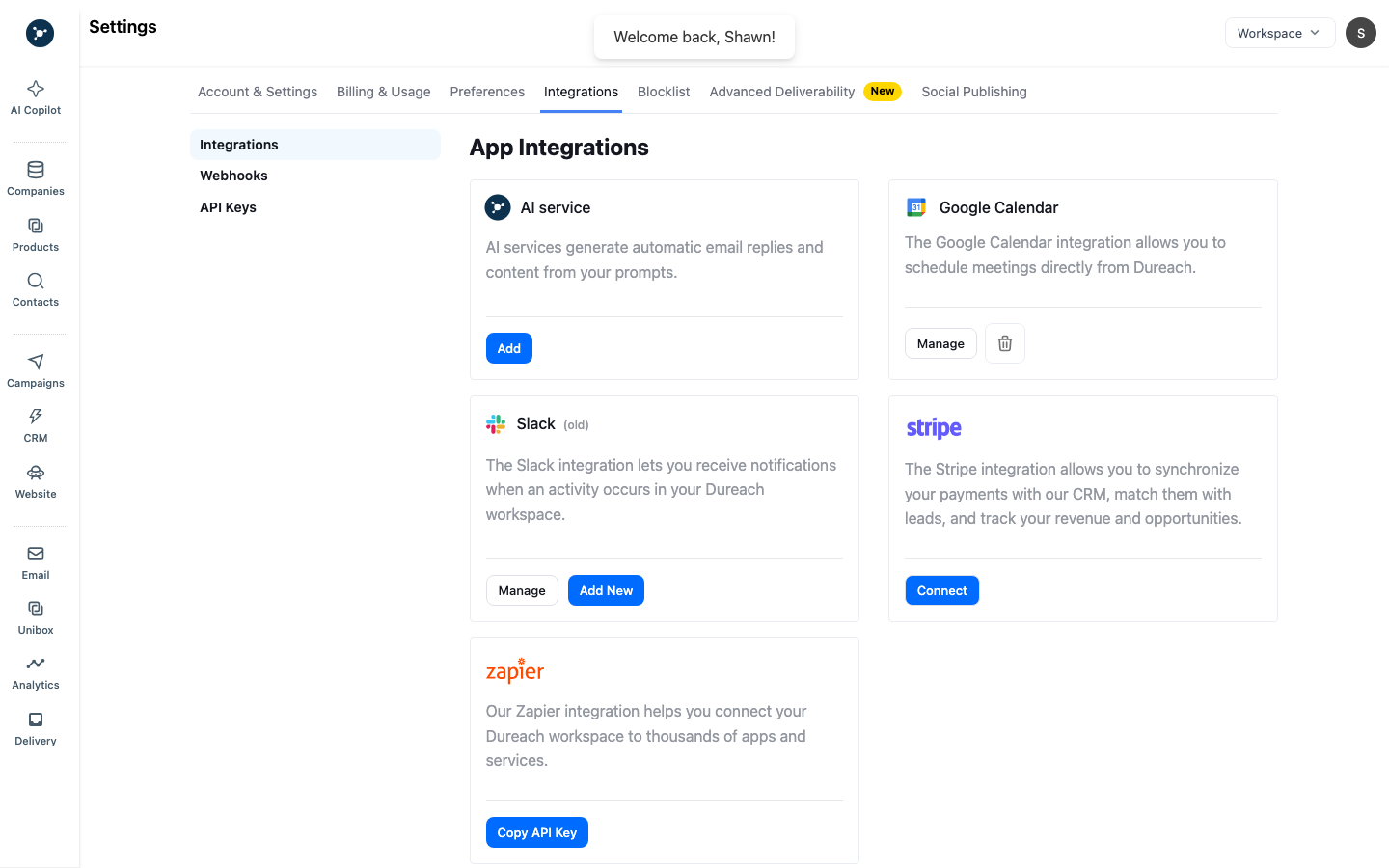
- Open Email from the left navigation, or use Settings → Integrations where the workspace exposes account setup.
- Select Add New.
- Choose the provider or connection method shown by the dialog.
- Complete provider authorization or enter the required connection fields.
- Return to Dureach and wait for the account row to show the connected/ready state.
- Open account settings and set sender name, reply-to, daily campaign limit, and slow-ramp options where available.
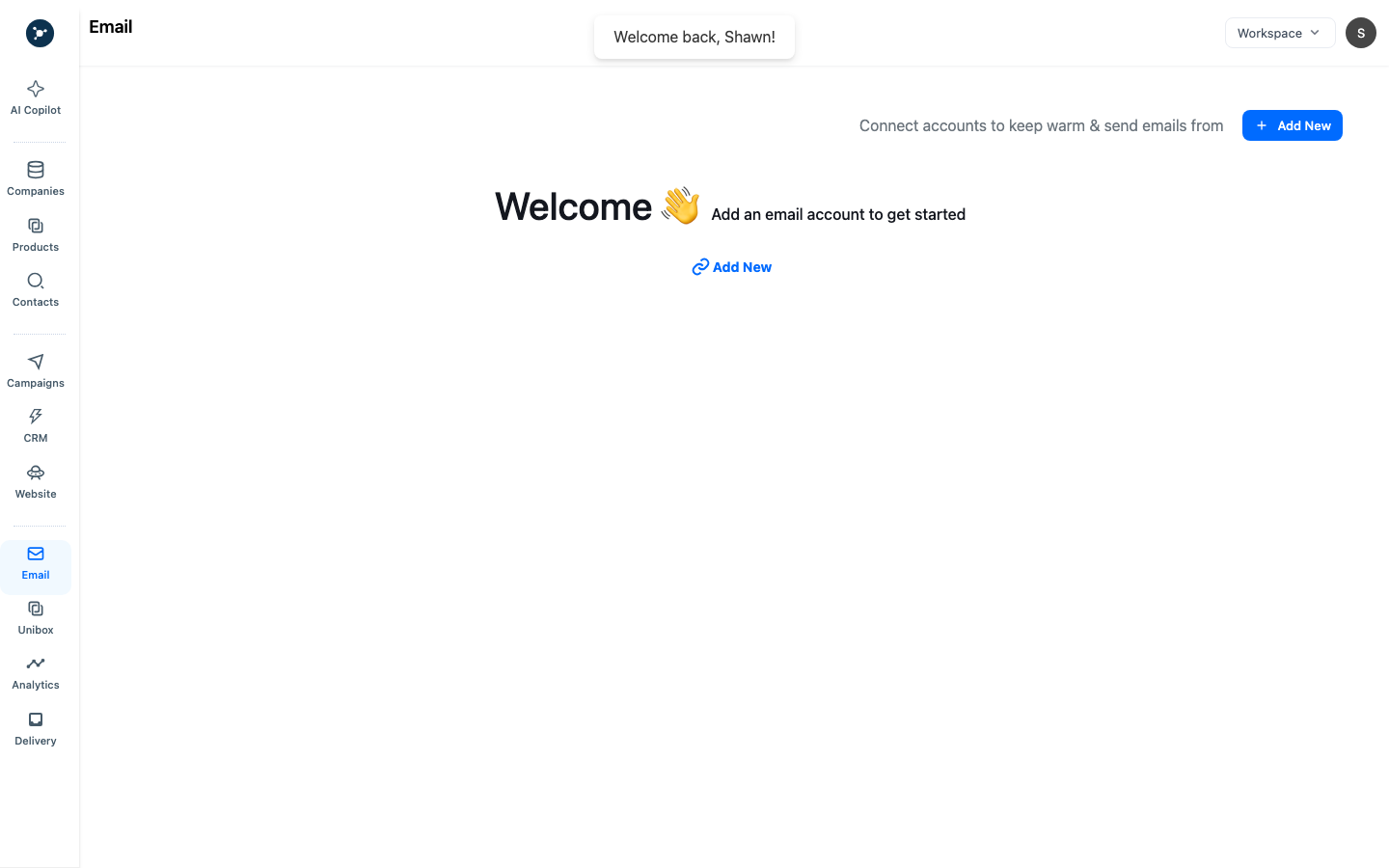
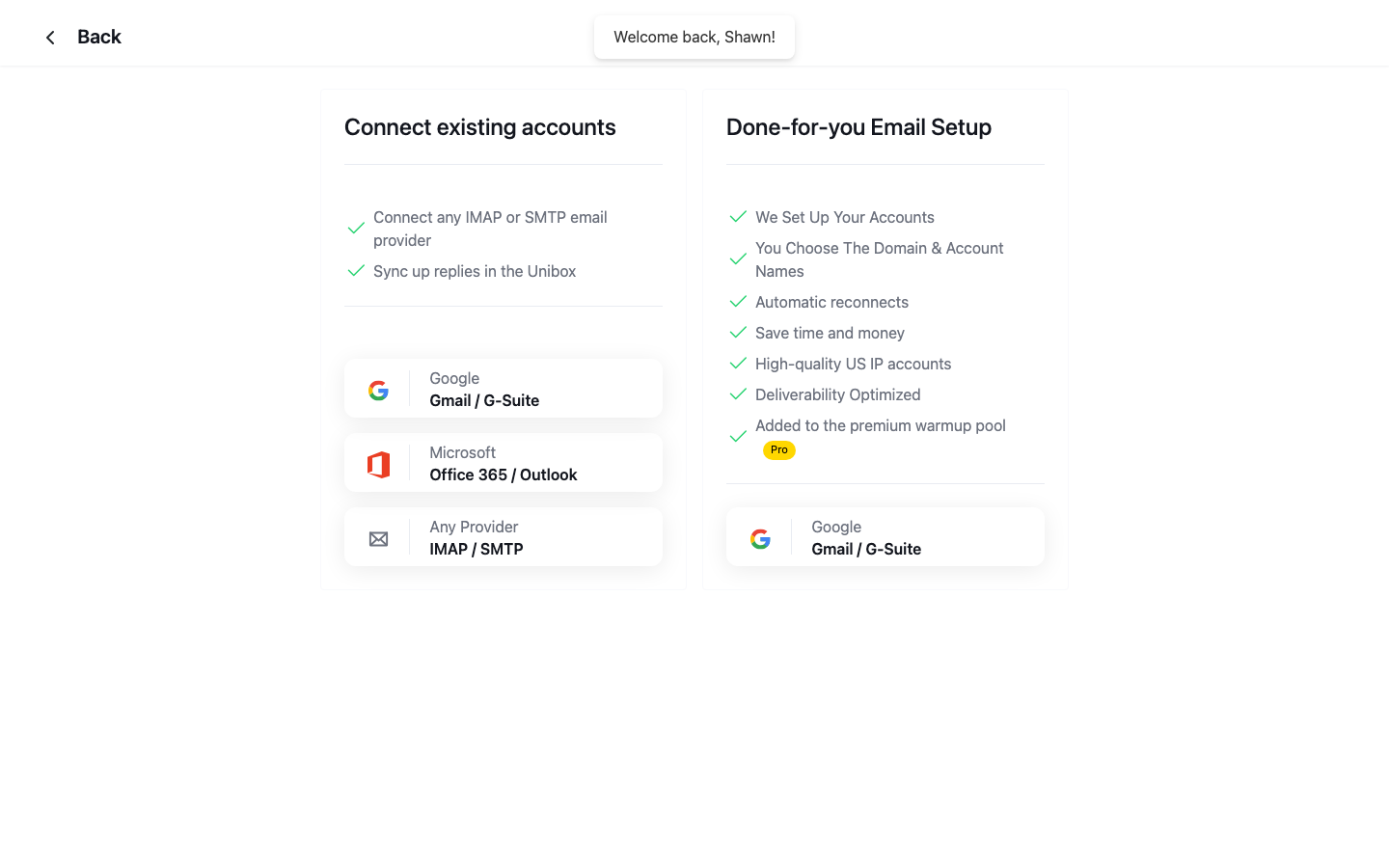
The empty state means that no sender is connected to this workspace. The connection modal is for authorisation, not campaign selection. Finish the connection first, then choose the account in the campaign.
Check deliverability settings
Open Settings → Advanced Deliverability and review workspace defaults that affect campaigns, including verification, company send limits, AI filtering, text-only delivery, and provider routing where visible.
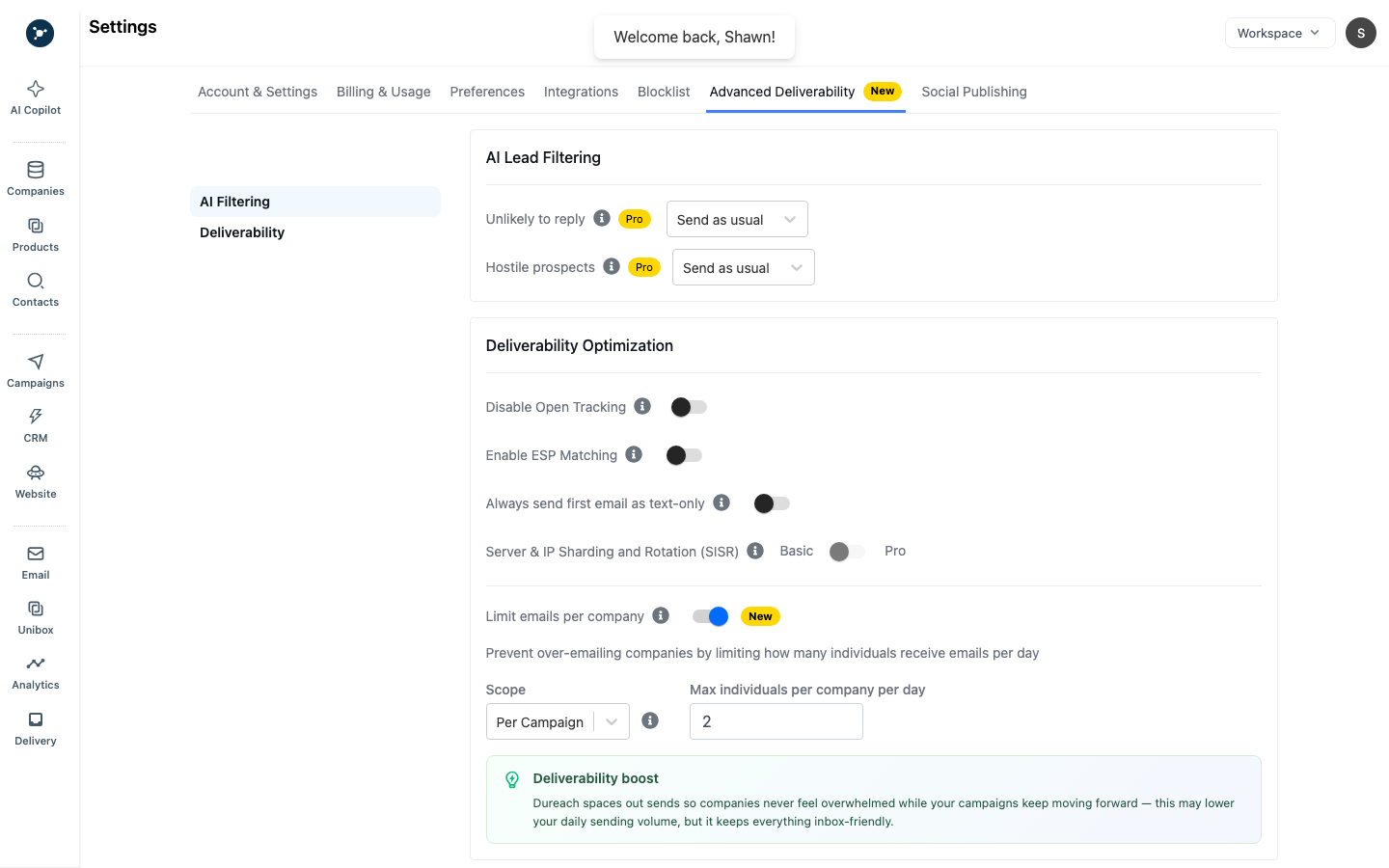
Note any workspace setting that explains a skipped or delayed lead. Campaign-level Options can narrow some of these settings.
Troubleshooting
- Authorization failed: retry the provider flow, check required scopes, and confirm the mailbox allows third-party access.
- Account disconnected: reconnect it, then check campaigns using that sender before resuming.
- No sends: check account limit, campaign limit, slow ramp, schedule, verification, and sender status.
- SMTP/IMAP error: verify host, port, encryption, username, app password, and provider policy; do not keep retrying invalid credentials.
What happens next
Send a test message, confirm the reply path, complete warm-up where required, and select only ready accounts in campaign Options.
Sender readiness checklist
| Check | Ready state |
|---|---|
| Authorization | The account returns to Dureach and shows connected or ready. |
| Sender identity | The displayed email and provider match the intended mailbox. |
| Warm-up or ramp | The account follows the workspace guidance before higher-volume sends. |
| Limits | Daily and campaign limits are visible and understood. |
| Test | A test message can be sent and the reply path is known. |
If authorization expires, reconnect from Settings → Integrations, return to the account list, and confirm the status changed before resuming a campaign.