
Use Unibox for incoming and scheduled email conversations, then use CRM to record the owner, note, task, and opportunity. This keeps the reply and next action together without treating every reply as a qualified opportunity.
Review a conversation
- Open Unibox from the left navigation.
- Filter by campaign, sender account, unread state, reply label, or scheduled state where available.
- Open a thread and confirm the recipient, campaign, latest message, and existing lead status.
- Use the status menu to classify the reply according to workspace labels.
- Reply, schedule a reply, attach a file, or use an AI suggestion only after reviewing the message and recipient context.
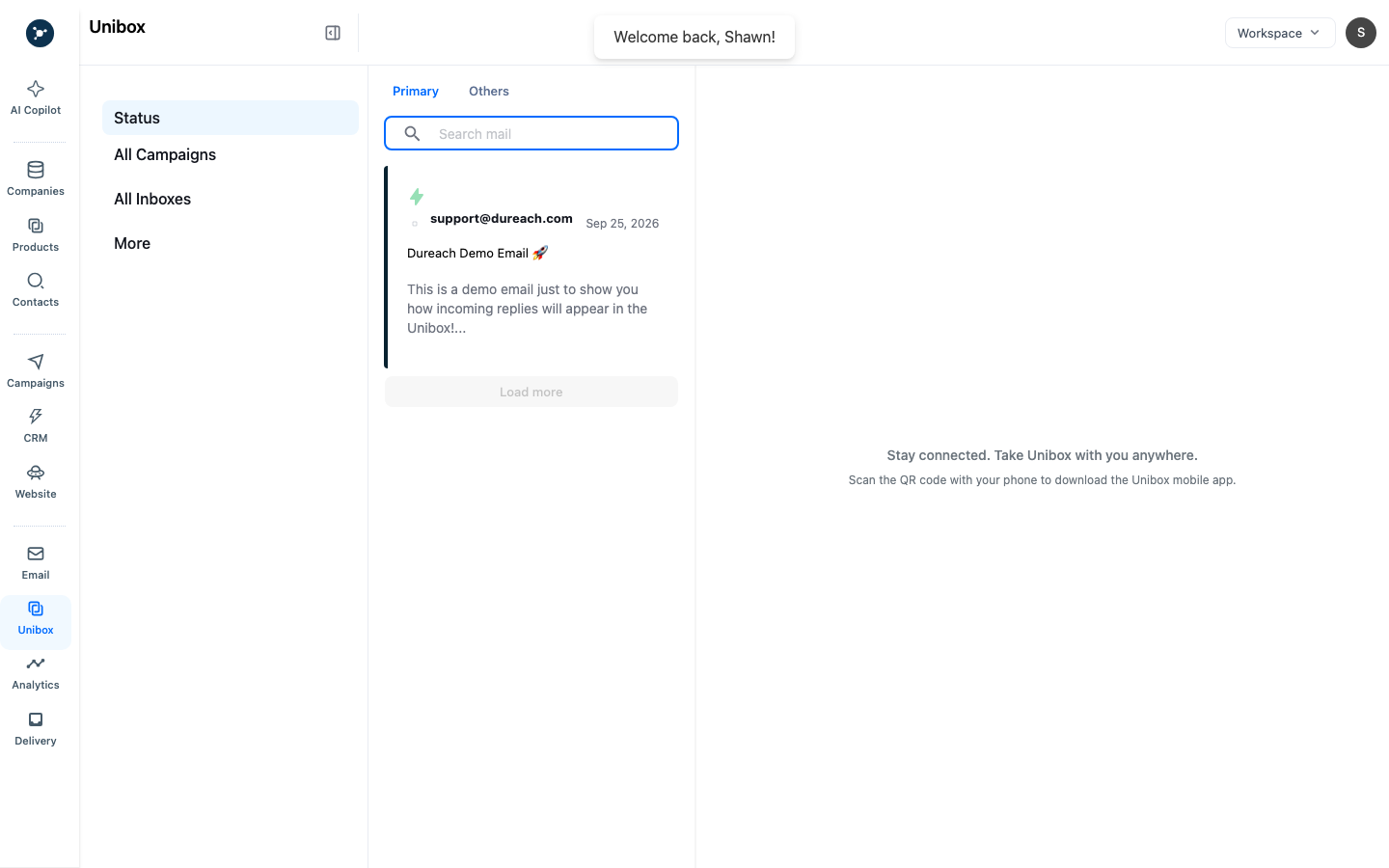
The status menu labels the conversation. Add a CRM note when the team needs to know what happens next.
Update CRM
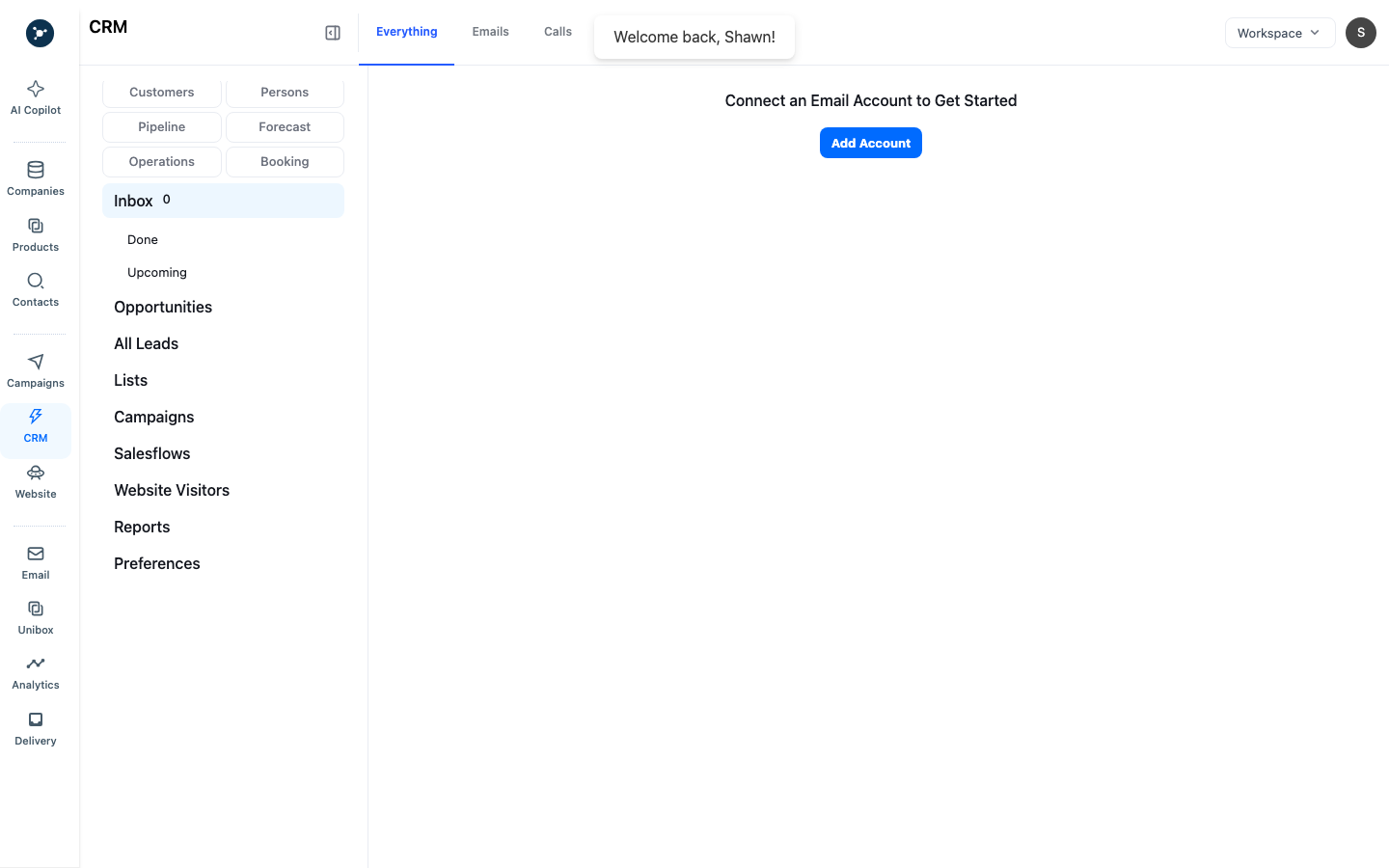
- Open CRM and choose the relevant tab, such as Leads, Pipeline, Opportunities, Tasks, Calls, SMS, Emails, or Website Visitors.
- Search or filter to the contact/company.
- Confirm the record is not duplicated before editing.
- Assign an owner, add a note, create a task with a due date, or update the opportunity stage/value where permitted.
- Save and verify the activity appears on the record.
Status and permissions
Reply labels, opportunity actions, ownership, exports, and archive controls vary by role and plan. A positive reply is a reason to review the conversation; create an opportunity only when it meets your qualification rule. Restore an archived record or intentionally create a new one rather than making a duplicate by accident.
Troubleshooting
- Reply missing: check Unibox filters, sender synchronization, account connection, and the reply thread.
- Cannot change status: check workspace role and whether the record is archived or locked by another workflow.
- Duplicate contact: search by email/domain before creating a new record and merge or remove according to workspace policy.
- Task not visible: confirm owner, due date, selected CRM tab, and current view filters.
What happens next
Keep the next task visible, review it from CRM → Tasks, and use Analytics or campaign history to connect outcomes back to the source campaign.
Record and reply fields
| Area | Required | What to verify |
|---|---|---|
| CRM tab | Workspace access | Use Everything, Emails, Calls, SMS, or Tasks to narrow the activity view. |
| Owner | Optional until handoff | Assign the person responsible for the next action. |
| Stage/status | Optional but recommended | Keep the visible value aligned with the actual conversation. |
| Unibox status | Required for triage | Use the status menu to classify a reply, then save the change. |
Reply-handling procedure
- Open Unibox and filter to the relevant status or sender.
- Read the complete thread and open the linked lead or company record.
- Choose the status action shown in the menu, add a note, and assign an owner when another teammate must act.
- Create a CRM task or opportunity for a qualified reply and include the campaign/source in the note.
- Reopen the thread to verify the status, owner, and next task are visible.
If a reply is missing, check the connected sender, synchronization state, and Unibox filter before changing CRM data. A disconnected sender cannot deliver or synchronize new replies; reconnect it in Settings → Integrations, then verify with a new test reply.
Conversation-to-pipeline procedure
- Open Unibox and filter by the visible reply status, sender, or campaign.
- Read the full thread and open the linked contact and company records.
- Set the reply status from the status menu, then save and confirm the status chip changes.
- Assign an owner and add a note that records the request, source campaign, and due date.
- Create a CRM task or opportunity when the reply qualifies for follow-up.
- Open CRM and verify the activity, owner, stage, and next task are visible.
| State | Meaning | Action |
|---|---|---|
| Unread/new | A reply needs triage. | Read the thread and classify it. |
| Reviewed/status set | The reply has a recorded disposition. | Assign ownership and next action. |
| Archived/closed | No active follow-up is expected. | Reopen only when a new reply or task requires it. |
If a thread is missing, check the sender connection and Unibox filter. If the status menu is disabled, check role access and whether the record is archived.