
What this workflow does
Company search turns a broad market question into a list of accounts you can check. Use it to find a segment, verify a trade lead, or prepare accounts before looking for people. A list is not a campaign: contacts, a sender, a sequence, and a schedule still need to be set up.
Before you begin
Decide which details matter: company name or domain, country, industry, size, website, product, trade records, or a signal. If the account came from a shipment or visitor signal, note the source and date. Contact reveal and enrichment may use separate plan access or credits.
Search and filter
- Open Companies from the left navigation.
- Enter a company name, domain, product, or other supported search term.
- Add one filter at a time and check the result count after each filter.
- Use the available sort control to prioritize the order you want to review.
- Open a result row and compare the company name, website, country, and available firmographic or trade context.
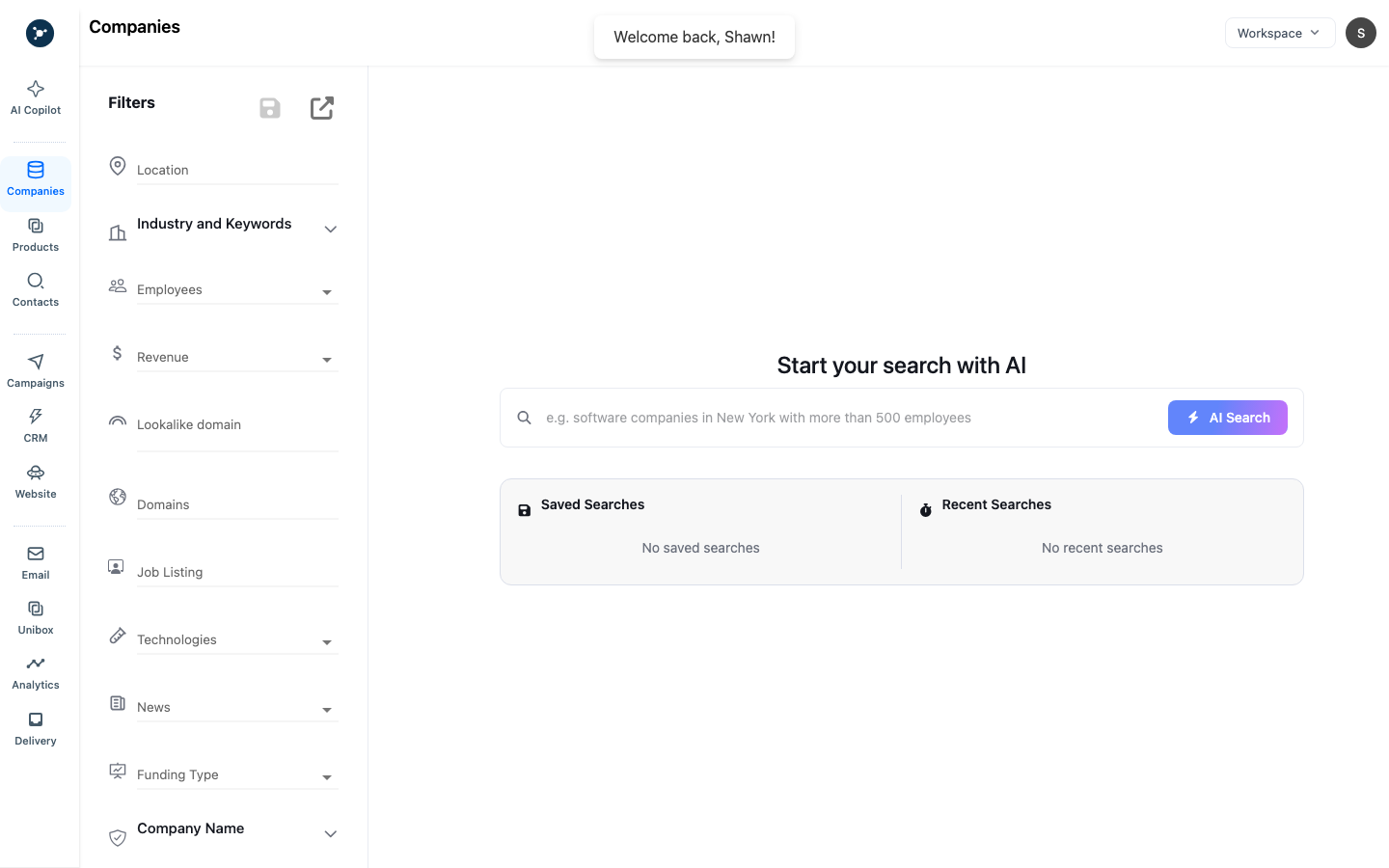
The empty state is the starting point, not a failed search. Enter a query before expecting results.
If the result is empty, clear the newest filter first, broaden the geography or spelling, and confirm that the search has finished loading. Avoid repeatedly refreshing a paid or rate-limited search.
Build a list
- Select only the rows that pass your identity check.
- Choose Add to list or the equivalent row action.
- Select an existing list or create a named list that records the use case and source.
- Open CRM → Lead lists and remove duplicates or accounts outside the target segment.
- Add a note with the information, review date, and intended next step.
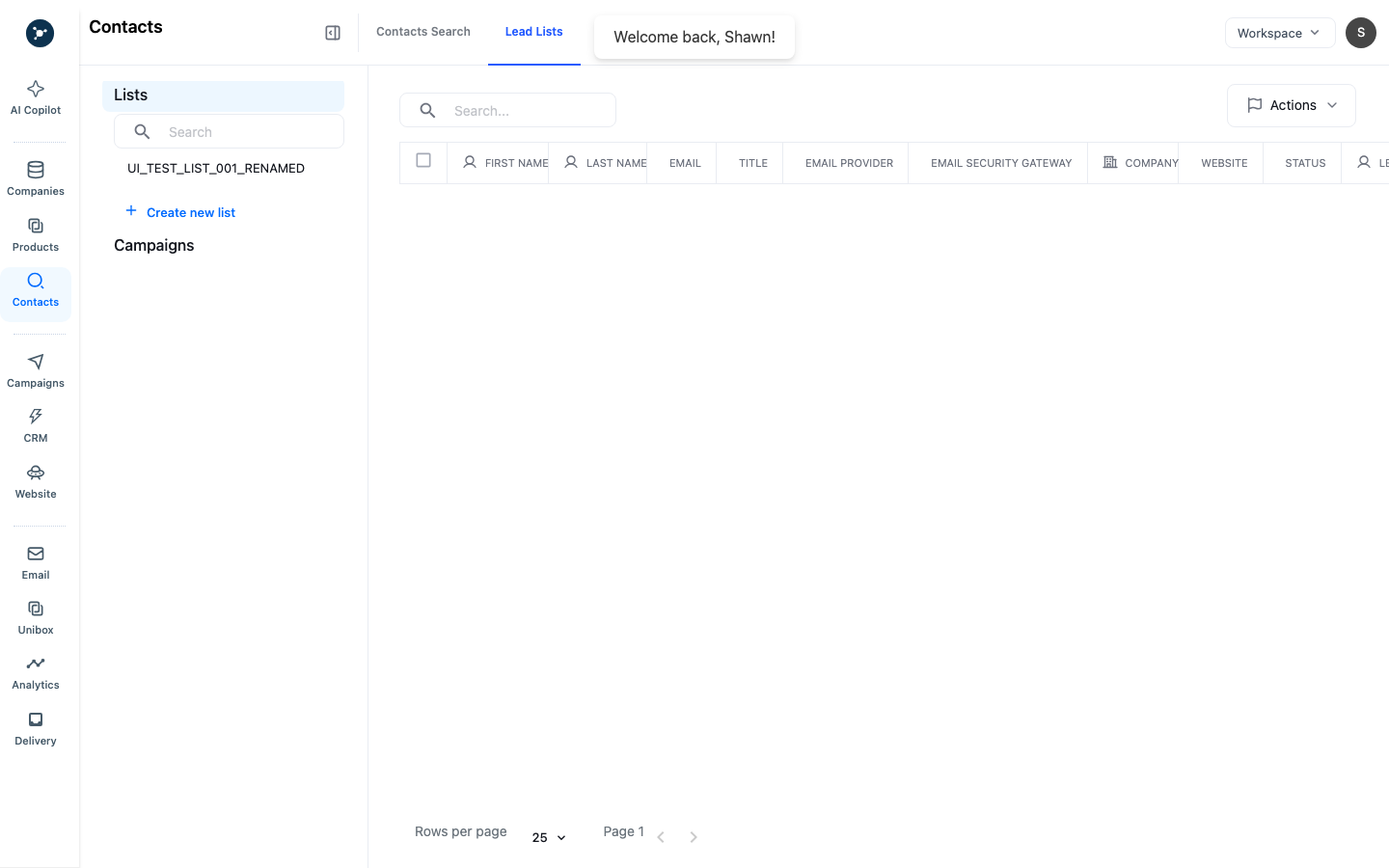
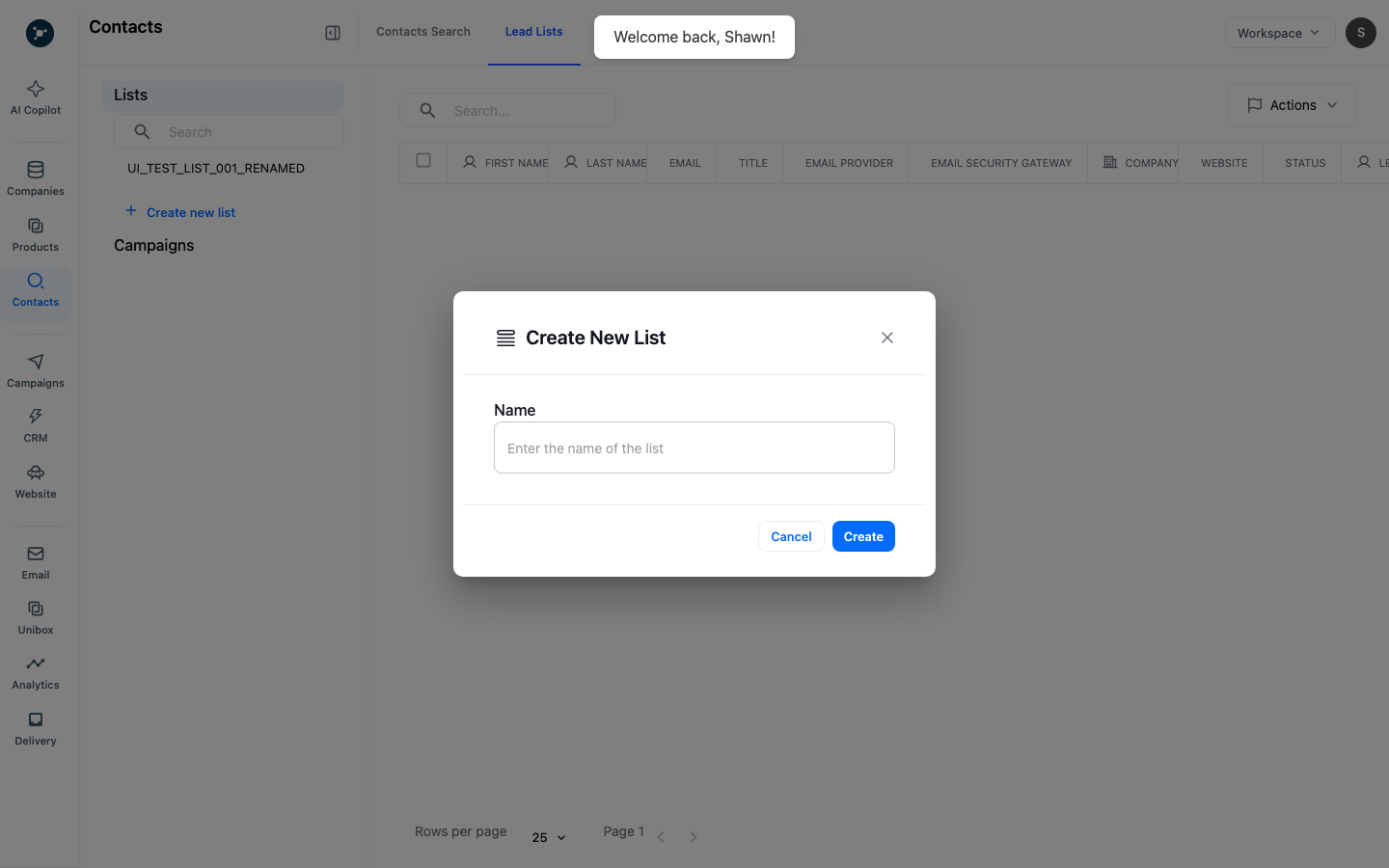
Name the list after its purpose in the create dialog. After saving, confirm that it appears in Lead Lists before adding it to a campaign.
Add contacts and continue
Open the company profile, choose the relevant department or seniority, and review returned contact data before revealing or enriching it. Verify the contact, then move the person into a separate outreach list. Continue to contact enrichment or campaign setup only after the list is clean.
Common mistakes
- Saving every search result without checking company information.
- Mixing accounts from different campaigns without a source note.
- Treating a trade or website signal as confirmed buying intent.
- Revealing the same contact repeatedly instead of checking existing lists.
What happens next
The saved list becomes a reusable audience. Reopen it to update membership, find contacts, assign an owner in CRM, or add reviewed contacts to a campaign.
Field reference
| Field or control | Required | Meaning and use |
|---|---|---|
| Search | No | Matches the supported company name, domain, product, or text query. Leave blank only when browsing the default result set. |
| Filters | No | Narrows the result set by the options displayed in the filter menu. Apply one change at a time so you can explain an empty result. |
| Sort | No | Changes review order; it does not change which records match. |
| Add to list | For a saved audience | Saves selected accounts to an existing list or opens the list-create dialog. |
Result states
| State | Meaning | User action |
|---|---|---|
| Loading | The search is still running. | Wait for the result count before selecting rows. |
| Results | Accounts match the current query and filters. | Open the profile and verify identity before saving. |
| Empty | No account matches the current query. | Remove the newest filter, broaden the query, and run it once more. |
| Error | The request failed or the workspace cannot use the search. | Record the visible message, check access, and retry after correcting the cause. |
Troubleshooting and verification
If Add to list is unavailable, select a row first and check that you have list-write permission. If a profile has the wrong domain, remove it from the list and search the exact domain again. Verify the fix by reopening CRM → Lead Lists, checking the count, and opening one saved company. Escalate with the workspace, query, filters, timestamp, and redacted error text; never include private contact data.
What to do next
Use Run contact enrichment and review the result for people, then Create and operate a campaign after the audience and sender pass review.