
Copilot helps with research and writing in the app. Deep Research turns a larger question into a planned research project that can be reviewed as it runs. Both provide suggestions and information; neither should change company, contact, or CRM records without review.
Before you begin
Open Copilot from the left navigation. Remove passwords, API keys, private customer exports, and personal data that is not needed. Decide whether you need a quick answer or a project with a saved plan and run history.
Use Copilot
- Open Copilot and review the composer and available tools.
- State the task, target company or record, output format, and information boundary.
- Attach only the context needed for the task.
- Submit the prompt and wait for the response state.
- Check returned sources, fields, uncertainty, and suggested actions.
- Copy or save only reviewed output into a campaign, list, note, or CRM record.
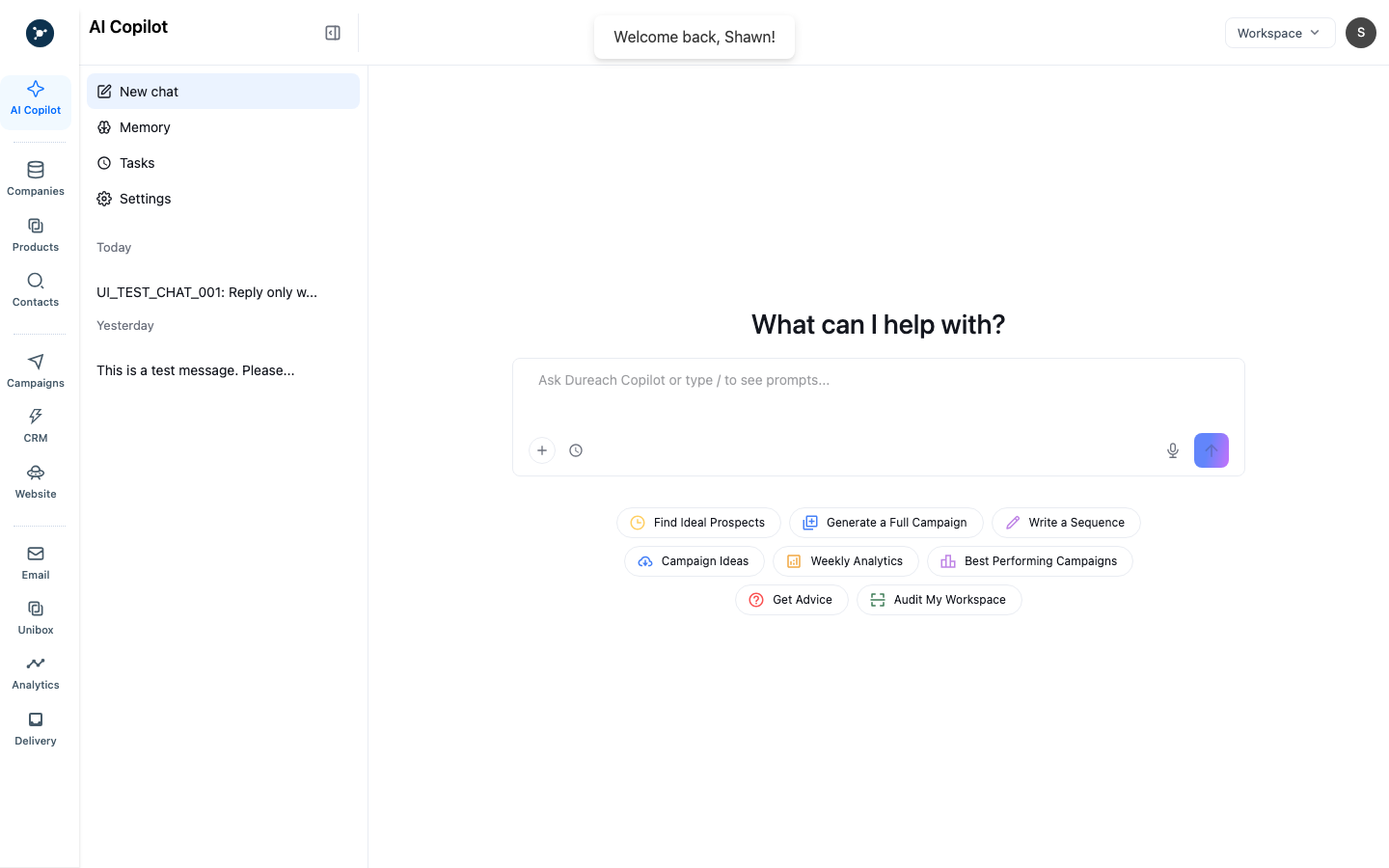
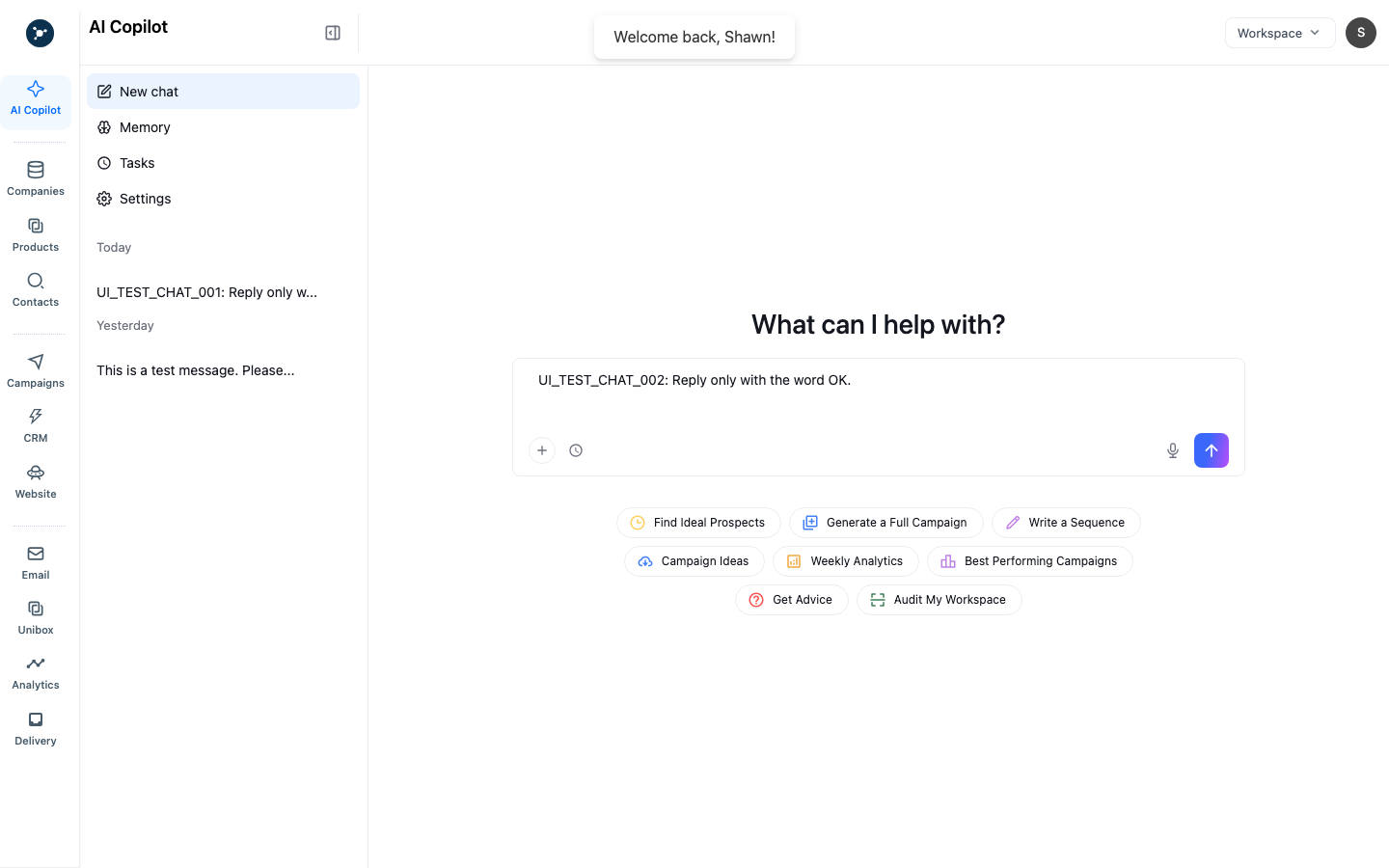
The composed prompt is still a draft. Sending it starts the request; it does not approve a contact, send an email, or update CRM by itself.
Start Deep Research
- Open AI Projects and choose the research-create action, or select Deep Research from Copilot tools where the workspace exposes it.
- Enter the research question, target market or records, and desired output.
- Answer only clarification questions that materially change the research. Use best judgment when the product offers that option.
- Review the proposed plan before starting the run.
- Create the project in draft/plan state, then explicitly approve or start it.
- Monitor observable progress and wait for the run to finish; closing the browser should not be treated as cancellation.
- Review the artifact, information, matched records, and deduplication before using any result.
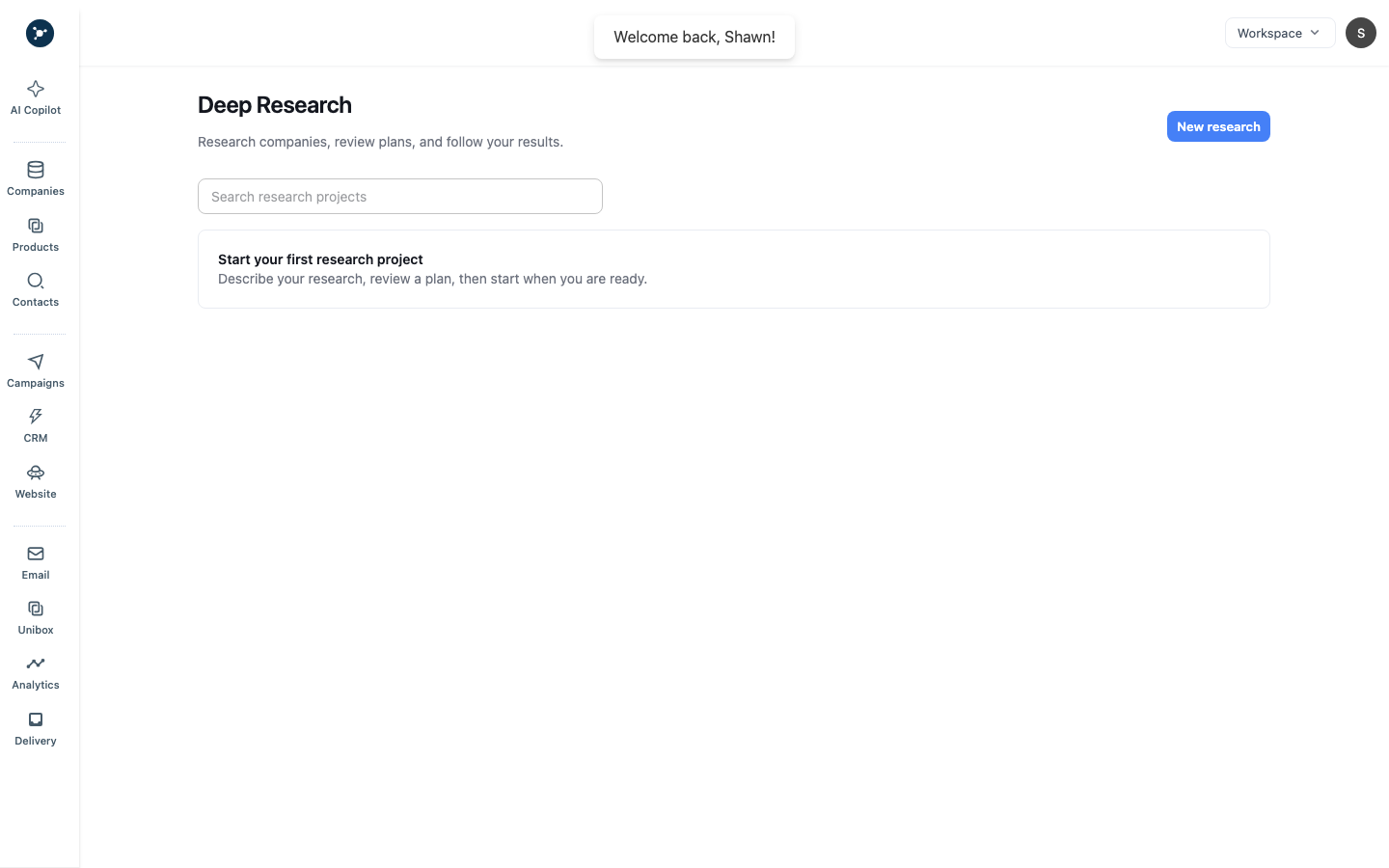
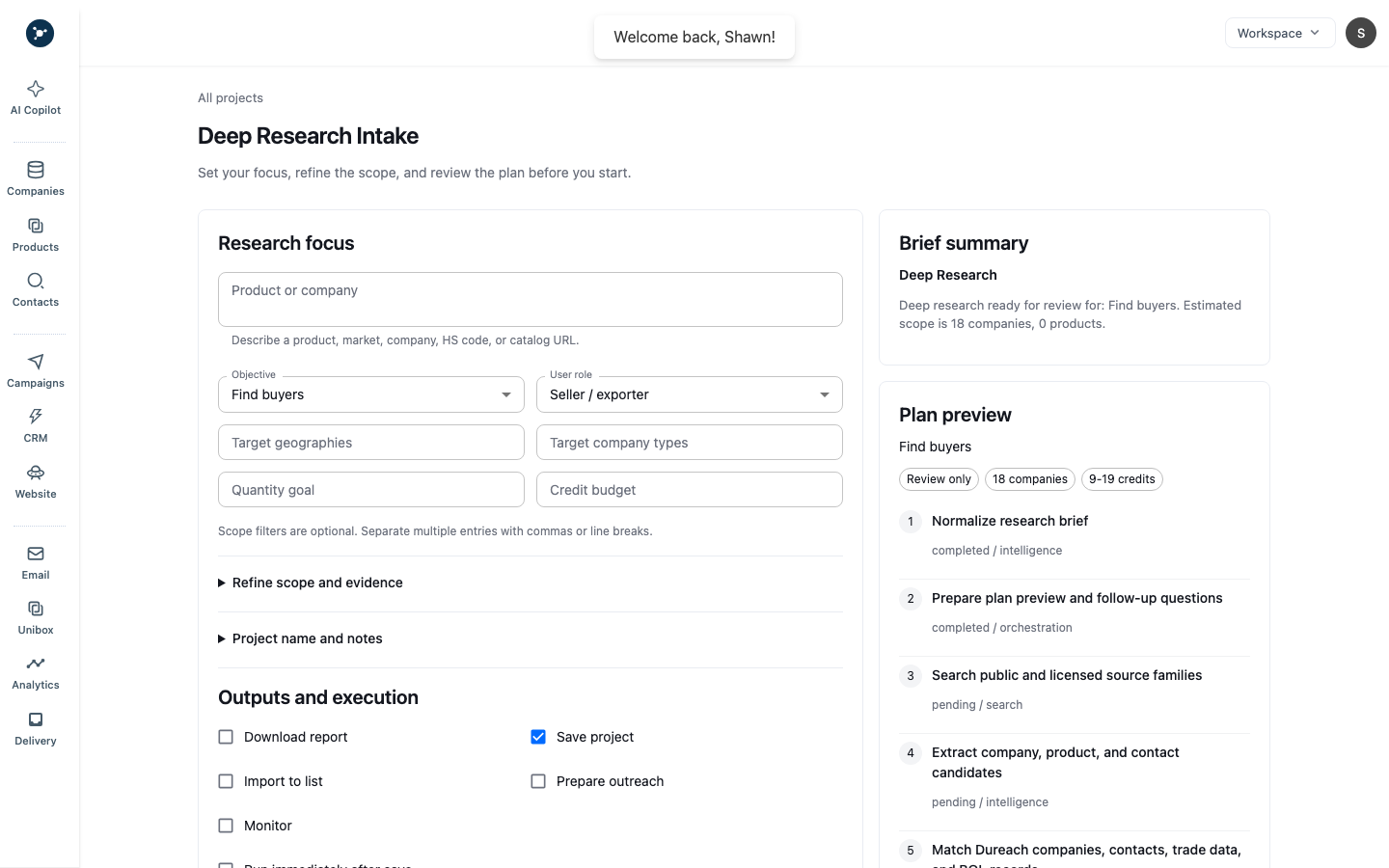
The creation modal is the starting point. A project can remain empty until you provide the required information; an empty preview is not a completed result.
Output and limits
Treat AI output as a suggestion. Check names, domains, contacts, and trade claims against the relevant record or source. Plan access, input size, model availability, and AI credits can prevent a request from running. If a run fails, save the project or run ID and the redacted error for support.
What happens next
Use reviewed information to update a note, prepare a campaign draft, or create a CRM task. To add a person to a list, first confirm that the record matches the intended person and check any applicable contact restrictions. If you want to use an agent for recurring reply work, read Create and review an AI agent before enabling the workflow.
Input, output, and review reference
| Item | Required | Notes |
|---|---|---|
| Prompt or question | Yes | Name the company/person and the decision you need to make. |
| Source record | Recommended | Start from a company or contact so the result has workspace context. |
| Research output | Generated | Treat claims as candidates until you open the cited information and verify it. |
| Save/use action | Optional | Save a reviewed result as a note, task, or draft; do not send generated text without review. |
If Copilot returns no answer, narrow the question and confirm the selected record. If Deep Research stays empty, check the required input and wait for the job status; do not submit duplicate jobs. Verify completion by reopening AI Projects and checking the saved result and timestamp.
Review checklist
| Check | Expected result |
|---|---|
| Input record | The selected company, contact, or project is the one you intend to research. |
| Signals | Claims can be traced to the record or source shown in the result. |
| Output | The answer follows the requested format and marks unknown values instead of guessing. |
| Save action | A reviewed result is saved as the intended note, task, or project artifact. |
Repeatable procedure
- Open AI Copilot for a one-off question or AI Projects for a saved research job.
- Enter one decision question, identify the record, and specify the output you need.
- Submit once and wait for the visible loading or completion state.
- Expand the result, inspect sources and assumptions, and correct the prompt if the answer is too broad.
- Save only the reviewed result. Reopen the project or record to confirm the saved timestamp and owner.
- Use the result to create a task, CRM note, contact list, or campaign draft; review again before sending.
A job that remains pending should not be submitted again. Capture the project ID, input record, status, and redacted error if it remains pending after the normal processing window shown by the app.